Install Issues On Some Devices
App blocked or SMS permission denied? Here is how to fix it.
Easiest Fix
App Blocked? Install It From Google Play
If you have issues with the setup (the app is blocked or SMS permission is denied), you can now install a version of the app directly from Google Play.
Get It On Google PlayAfter Installing
Set the app as the default SMS handler on the phone.
Open the menu and switch to "Forward Messages" to start forwarding messages.
Or fix the version from our site
Installed the app from our site?
Follow these steps to get past the Android warnings.
Why does this happen?
Since this app is installed directly from our site rather than the Google Play Store, Android shows extra
warnings before letting it run — especially because the app needs SMS access to do its job.
This is expected, not a sign that anything is wrong. You only need to approve it once, during installation.
See our privacy policy for exactly what the app does
(and does not do) with your messages.
1
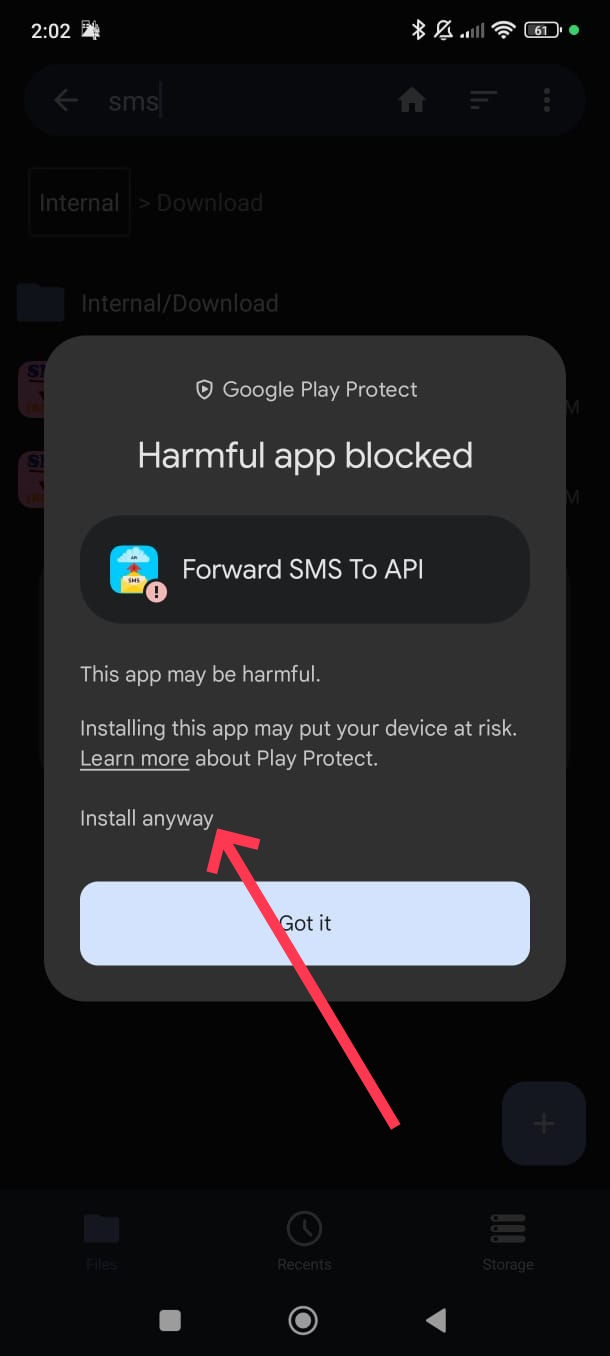
Choose "Install anyway"
On some devices Google will identify the app as harmful (since it needs SMS access). Click the install anyway option.
2
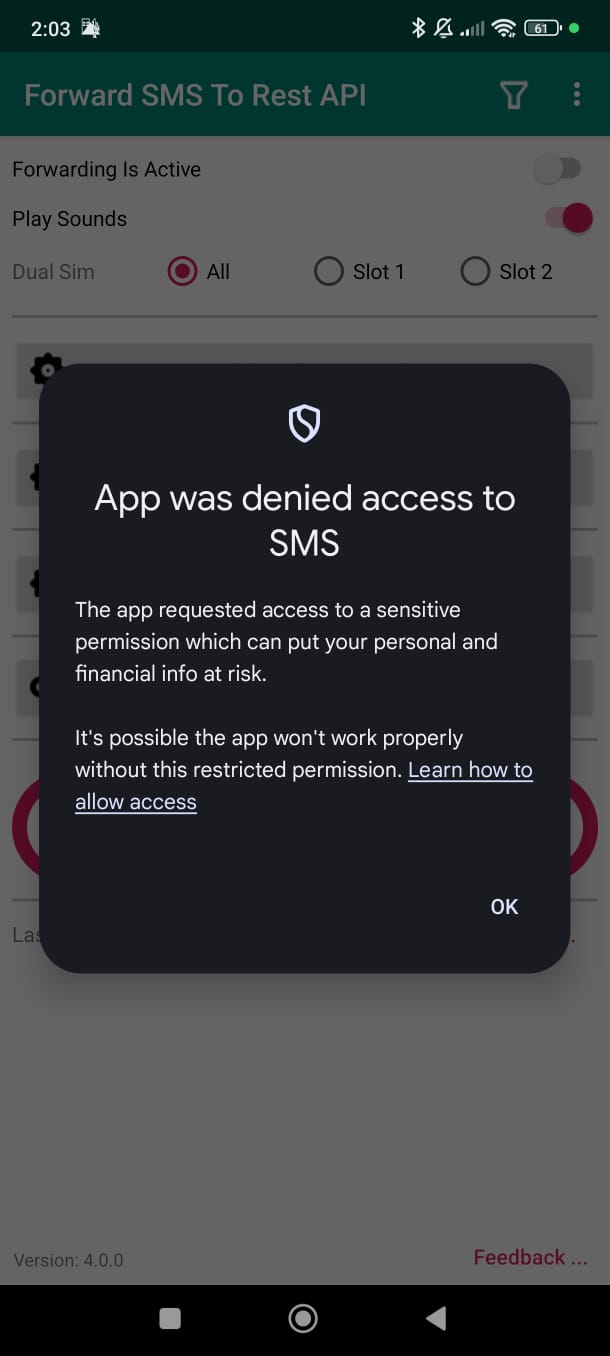
SMS permission is blocked
On some devices SMS permission will be blocked. If you see the message below, you need to turn on "Allow restricted settings".
3
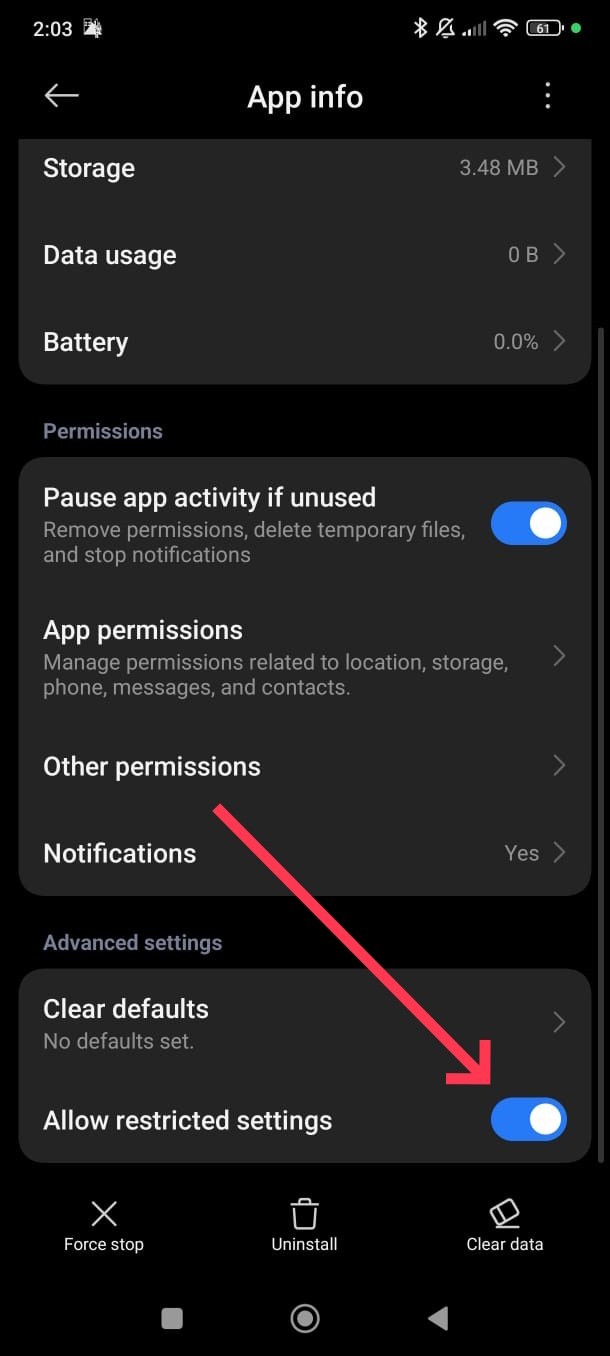
Turn on "Allow restricted settings"
Open the phone's App info screen for the app and turn on the "Allow restricted settings" option.
4
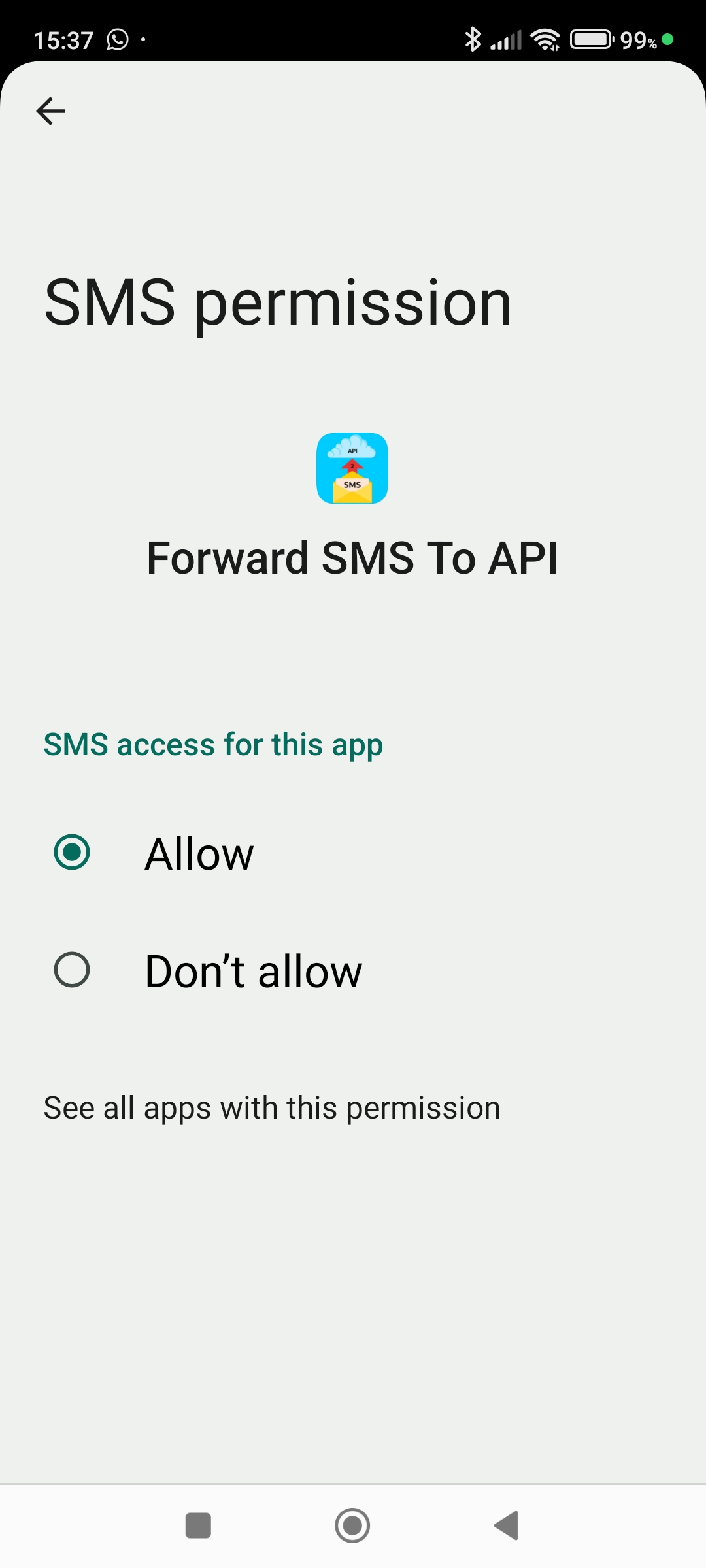
Allow SMS permission
Restart the app, or manually allow the SMS permission.